Docker Compose
Deploy and manage multi-container applications with visual Compose orchestration.
Overview
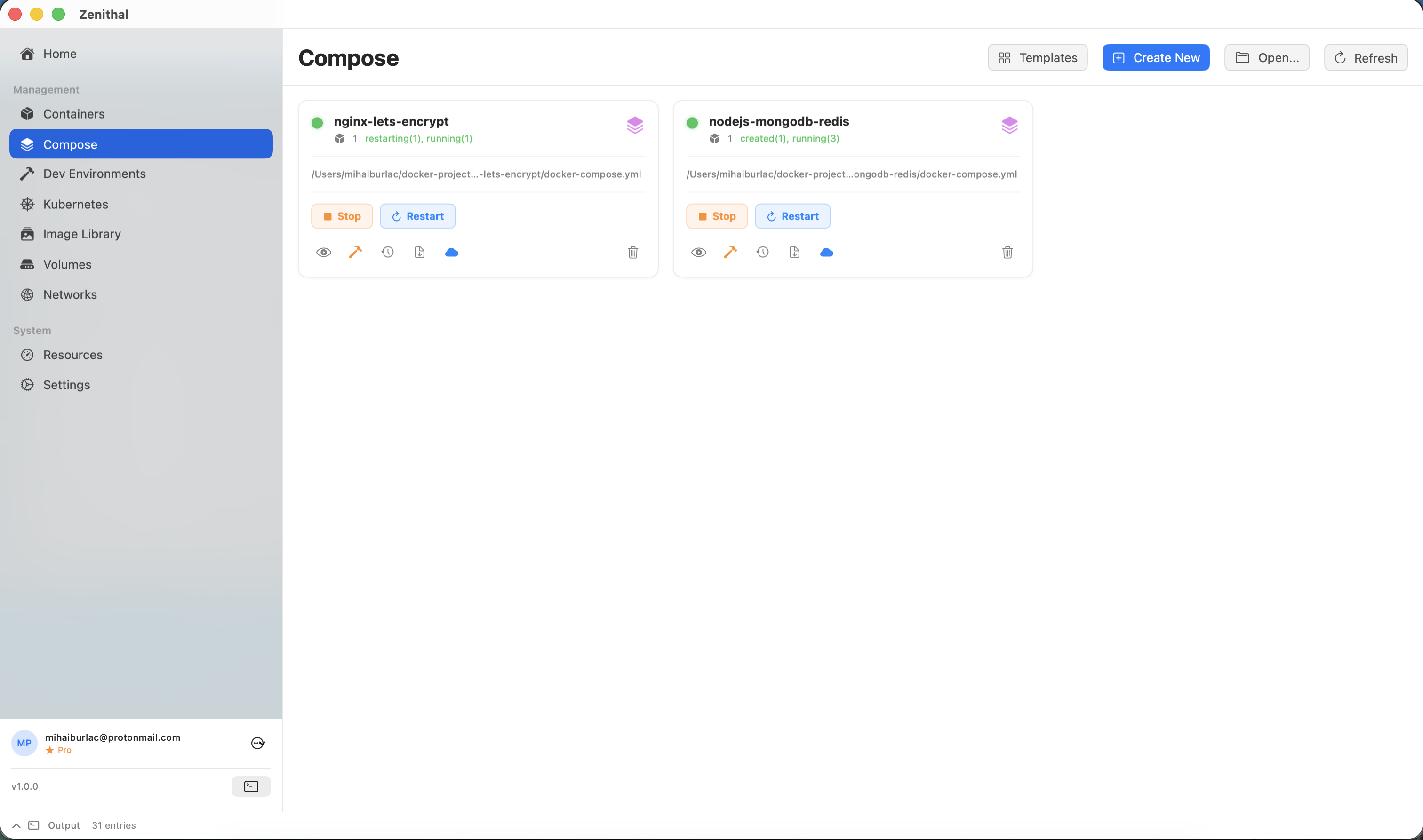
Zenithal provides a powerful visual interface for Docker Compose projects. Import existing projects or create new ones with pre-deployment validation and background deployment tracking.
Importing Projects
Add an existing Compose project to Zenithal:
- Go to Compose in the sidebar
- Click Import Project
- Select the folder containing your
docker-compose.yml - Zenithal will automatically detect and parse the configuration
Supported files: docker-compose.yml, docker-compose.yaml, compose.yml, compose.yaml
Compose Builder
The visual Compose Builder lets you create multi-service configurations without writing YAML:
- Click Create New to open the Compose Builder window
- Add services with a visual interface
- Configure images, ports, volumes, environment variables, and networks
- Add optional startup scripts for service initialization
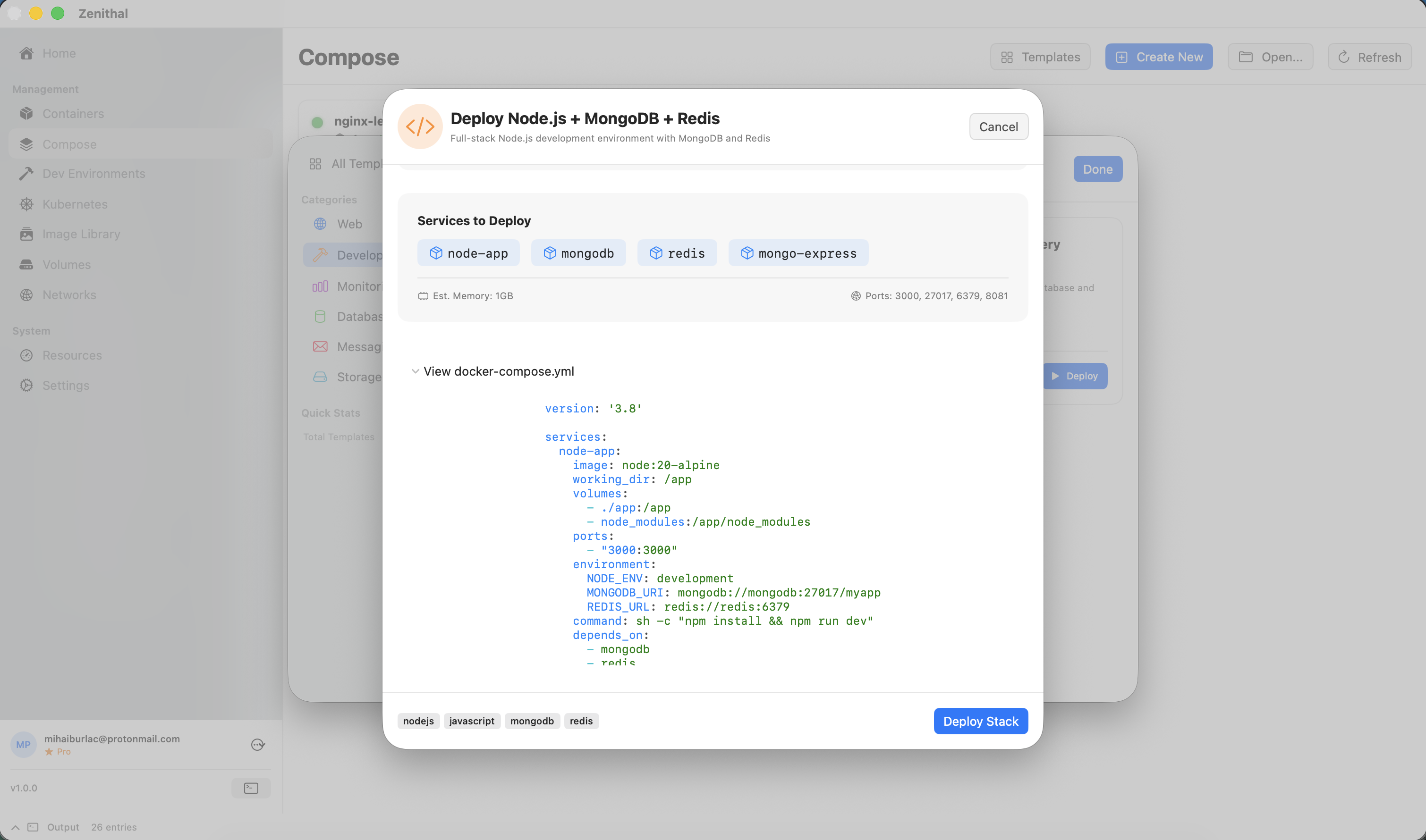
- Preview the smart-generated YAML with intelligent defaults
- Deploy directly or save the file
Smart YAML Generation: The Compose Builder generates clean, optimized YAML with best practices built in - proper service ordering, health checks, and resource defaults.
Pre-deployment Validation
Before deploying, Zenithal validates your configuration and warns about potential issues:
- Port Conflicts - Detects if ports are already in use by other containers or system services
- Image Availability - Checks if images exist locally or can be pulled
- Volume Paths - Validates that host paths exist and are accessible
- Network Configuration - Ensures networks are valid and compatible
- Environment Variables - Warns about missing required variables
- Syntax Errors - Catches YAML syntax issues before deployment
Warning: Validation issues are shown as warnings or errors. You can deploy with warnings, but errors must be fixed first.
Deploying Projects
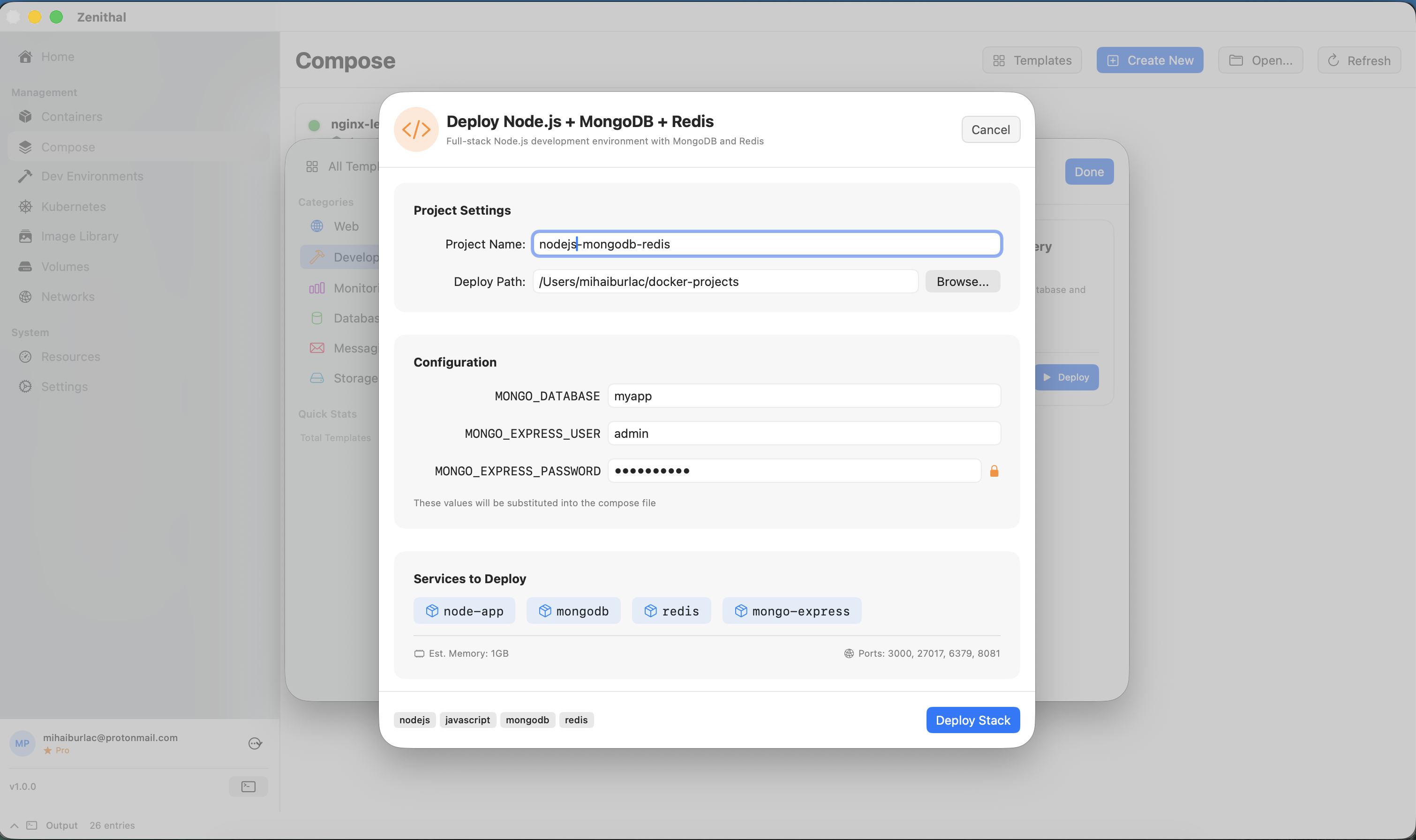
Zenithal supports background deployments so you can continue working while services start:
- Review validation results
- Click Deploy (or Up)
- Watch real-time progress in the background deployment panel
- Each service shows: Pulling → Creating → Starting → Running
Deployment Options
- Recreate - Force recreate containers even if unchanged
- Pull - Always pull latest images before deploying
- Build - Rebuild images from Dockerfile
- Remove Orphans - Remove containers not defined in Compose file
Service Dependency Graph
Visualize your service architecture with the interactive dependency graph:
- Services shown as nodes with health status colors
- Dependency arrows between services (from
depends_on) - Port mappings displayed on each service
- Click a service to view details or open logs
- Drag to rearrange, scroll to zoom
Scaling Services
Scale services up or down without editing the Compose file:
- Right-click a service in the project view
- Select Scale
- Enter the desired number of replicas
- Zenithal will start or stop containers to match
Version History & Rollback
Zenithal tracks changes to your Compose files:
- View history of all deployments
- See diff between versions
- Rollback to a previous configuration
- Compare current vs deployed configuration
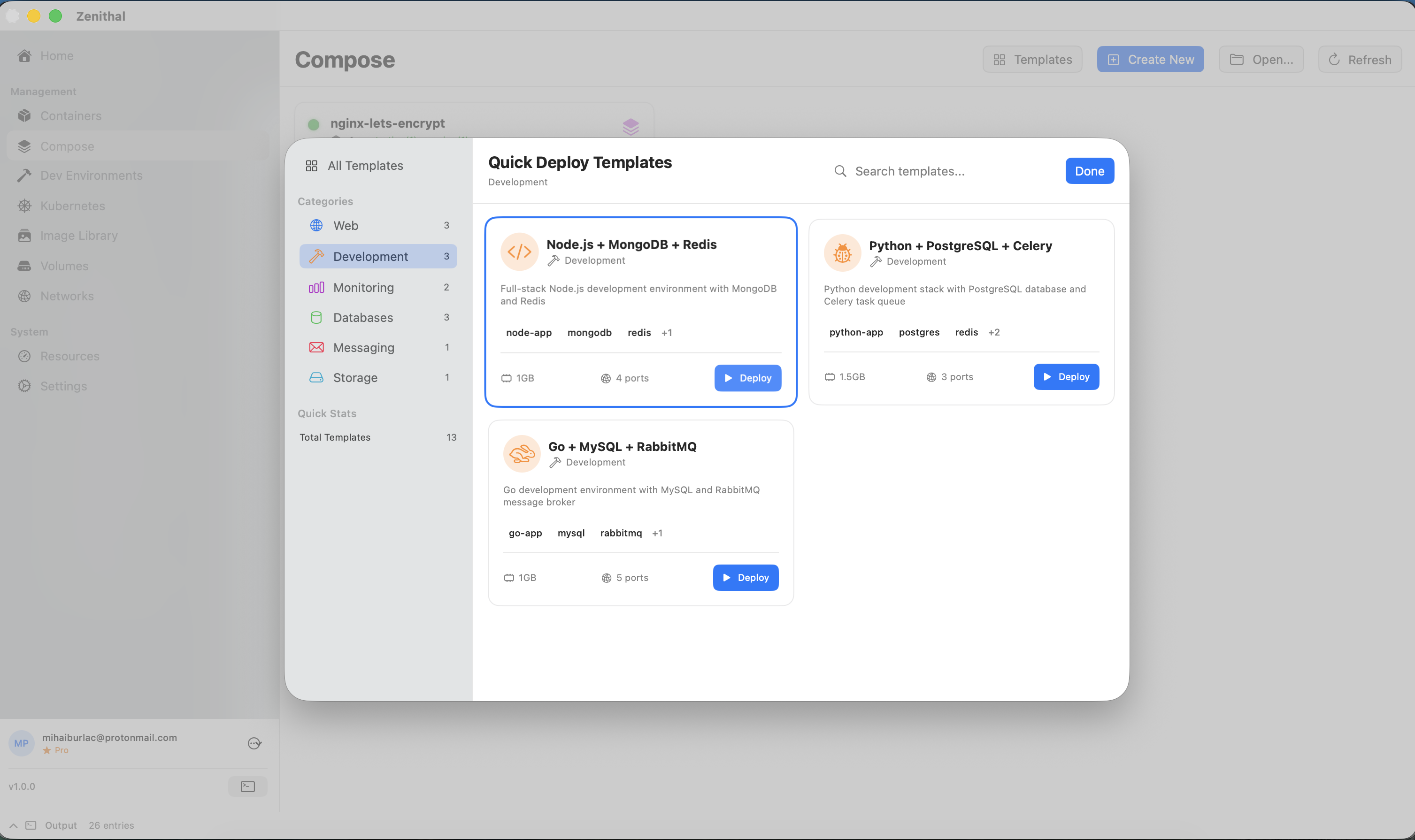
Compose Templates
Quickly spin up common stacks with built-in templates:
- LAMP (Linux, Apache, MySQL, PHP)
- MEAN (MongoDB, Express, Angular, Node)
- WordPress + MySQL
- PostgreSQL + pgAdmin
- Redis + Redis Commander
- Elasticsearch + Kibana
- And more...
Access templates from Compose → New Project → From Template.
Compose Intelligence
Smart analysis and recommendations for your Compose configurations:
- YAML validation and syntax checking
- Security scanning for hardcoded secrets
- Best practices recommendations
- Auto-fix suggestions
Compose Limits
There are no per-tier Compose caps. Every Compose feature - including unlimited projects and services, the Compose Builder, and Compose Intelligence - is available during the 7-day free trial and with a purchased license.
Dev Environments
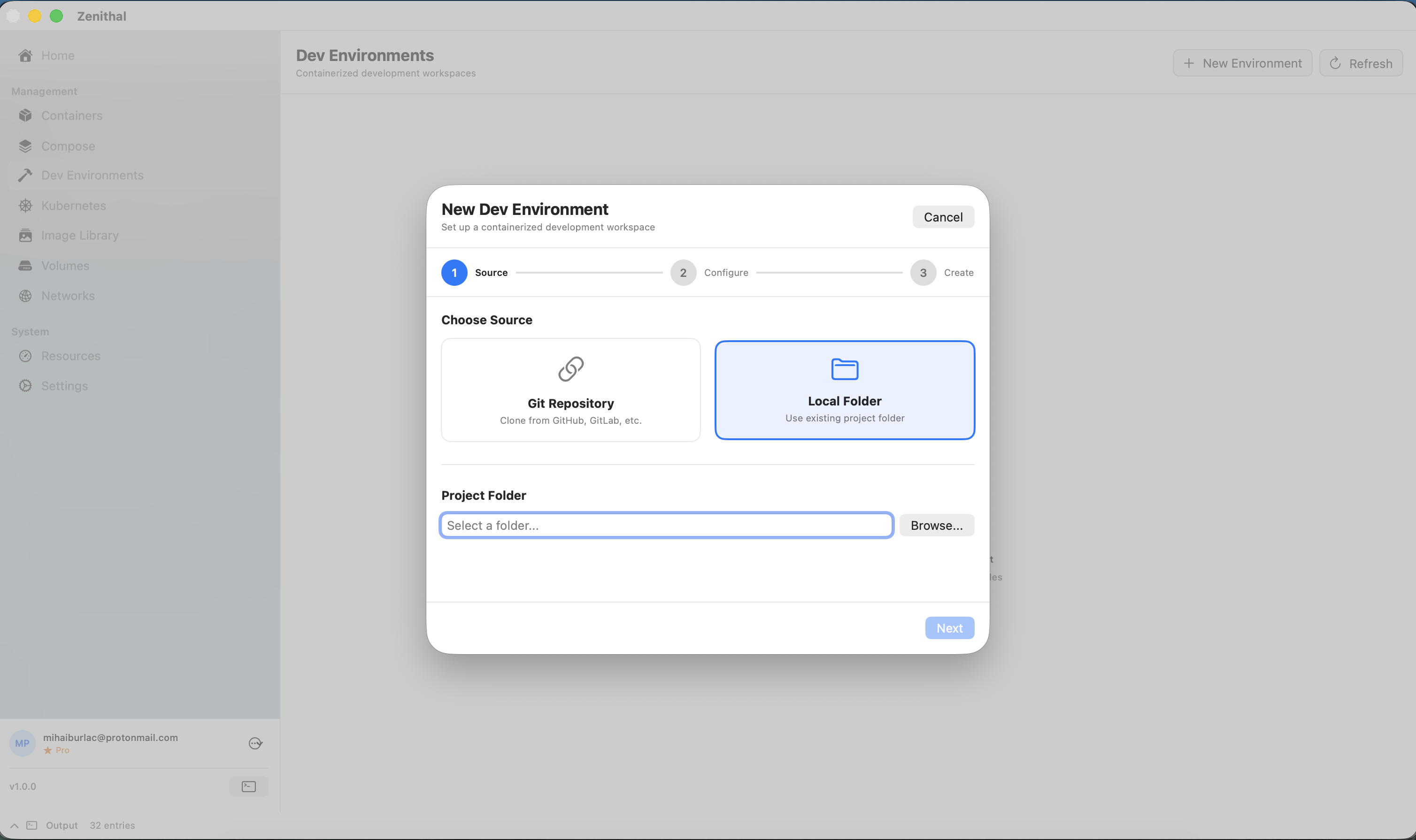
Create isolated development environments from your Compose projects for rapid prototyping and testing.