Getting Started
Get up and running with Zenithal in under 5 minutes.
1. Download and Install
Download Zenithal from our download page. The app comes as a DMG file.
- Open the downloaded DMG file
- Drag Zenithal to your Applications folder
- Launch Zenithal from Applications or Spotlight
- If prompted, allow Zenithal in System Settings > Privacy & Security
2. Install Dependencies
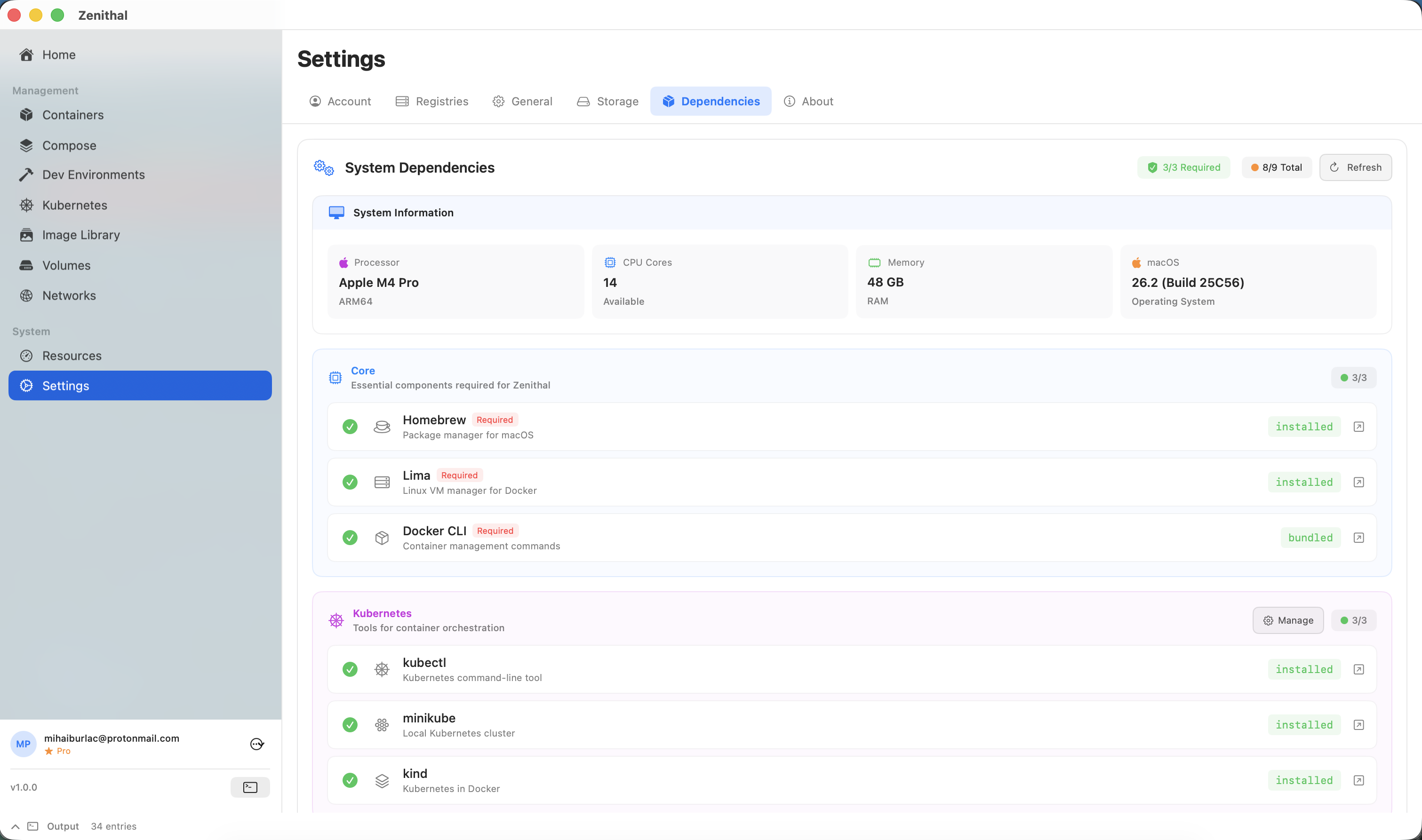
On first launch, Zenithal will check for required dependencies and guide you through setup:
- macOS version check - Verifies you're running macOS 13.0+
- Homebrew - If not installed, Zenithal will help you install the macOS package manager. Click "Open Terminal" to launch Terminal with the install command copied to your clipboard.
- Lima - Required for running the Docker engine. Click "Run" to install automatically via Homebrew, or copy the command (
brew install lima) manually.
Tip: After installing Homebrew, you may need to run additional PATH configuration commands shown in Terminal. Click "Refresh Status" in Zenithal after completing the setup.
3. Start the Container Engine
Once dependencies are installed:
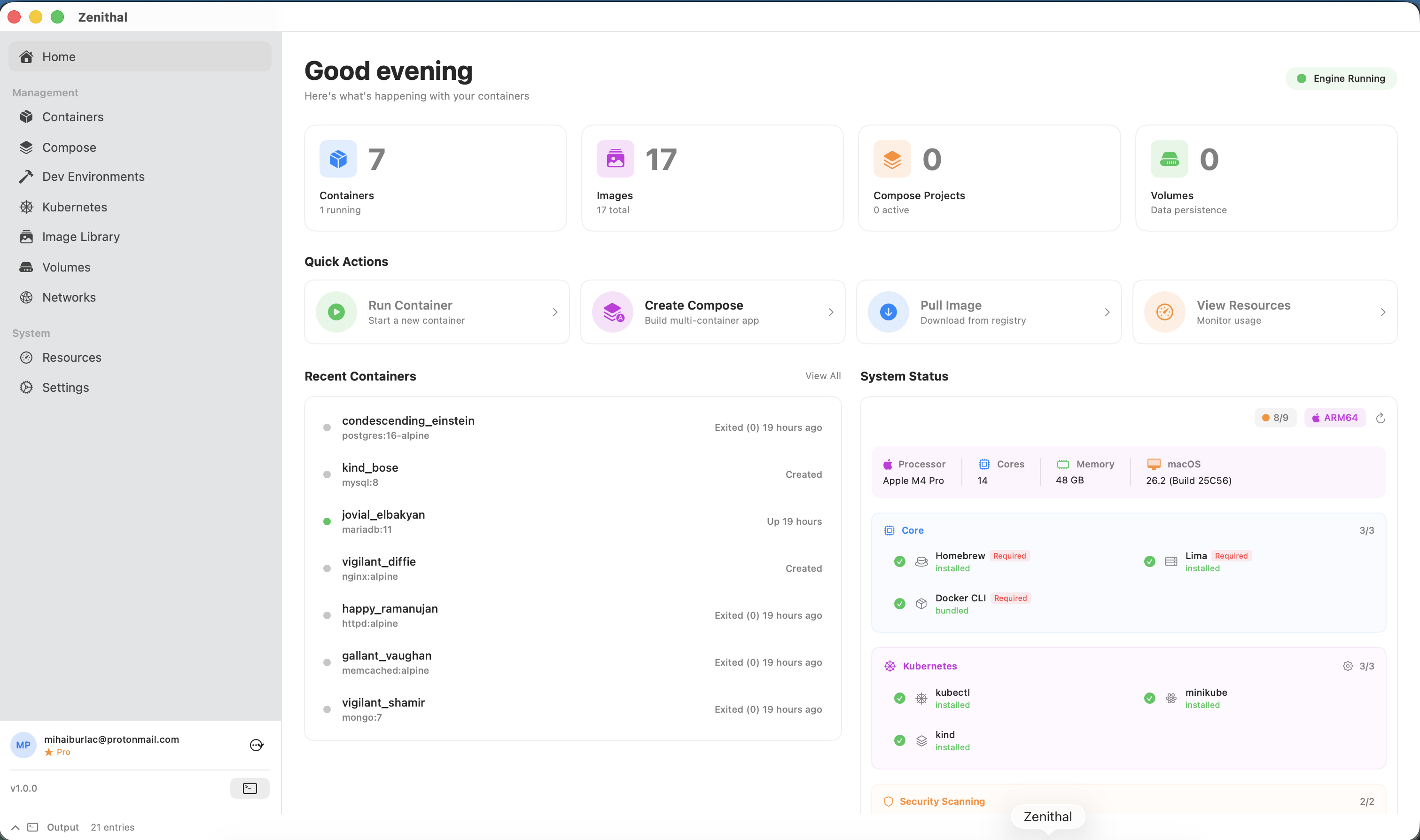
- Zenithal will initialize the Lima VM (this may take a few minutes on first run)
- The engine status indicator in the top-right corner will show a green dot when ready
- You're now ready to manage containers!
4. Sign In to Your Account
Sign in to start your 7-day free trial - every feature is unlocked, no credit card required. When you're ready to keep Zenithal:
- Buy a one-time license on the website
- Open Zenithal and go to Settings (Cmd+,) > Account
- Sign in with the same account you used to purchase
- Your license is applied automatically - no recurring billing
5. Run Your First Container
Let's start your first container:
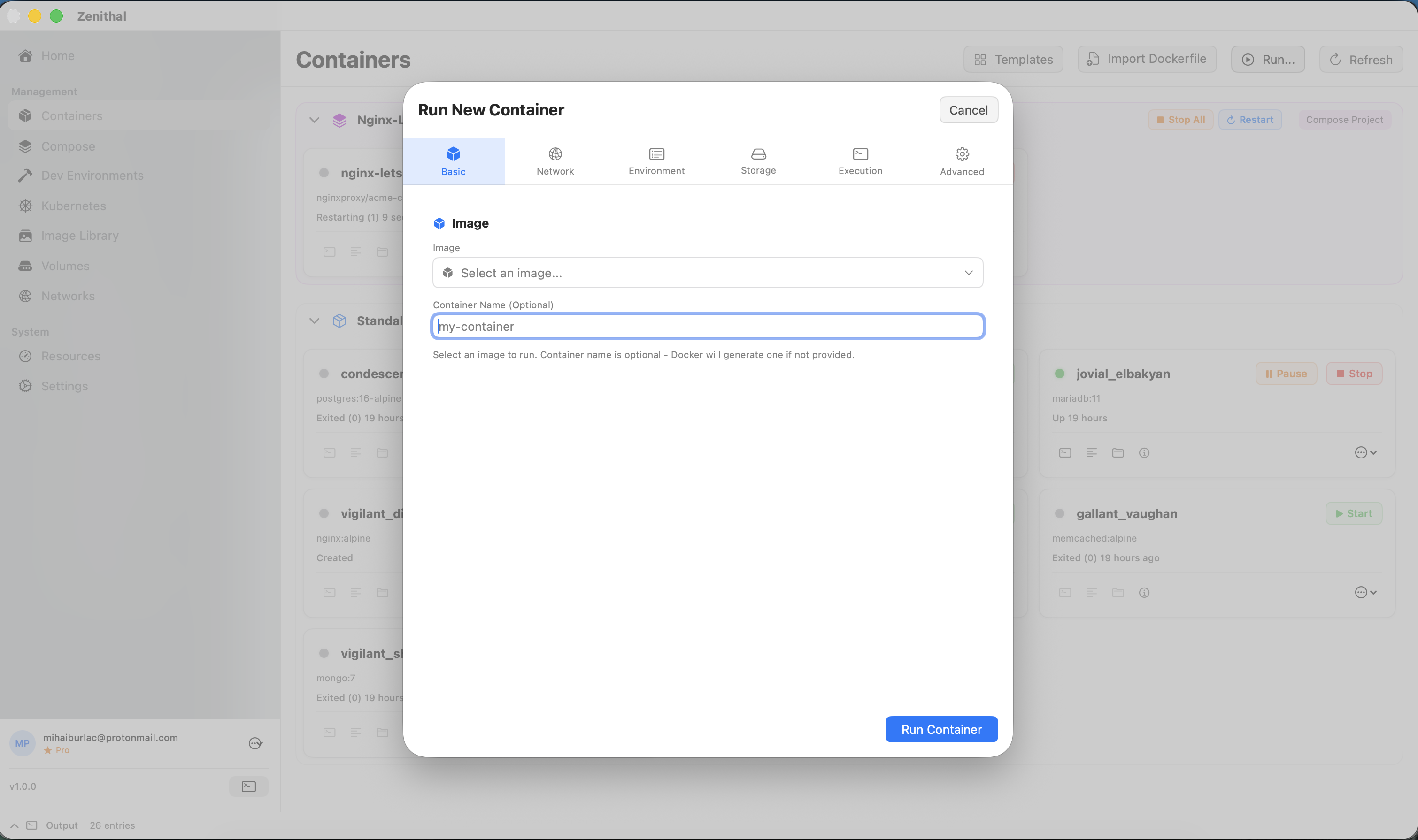
- Navigate to Containers in the sidebar
- If no containers are running, you'll see the Quick Start panel
- Choose a quick-launch option:
- Nginx - Web server on port 8080
- Redis - In-memory cache
- Alpine - Lightweight Linux OS
- Or click Import Dockerfile to build from a Dockerfile
Essential Keyboard Shortcuts
Cmd+U | Check for Updates |
Cmd+? | Open Help |
Cmd+, | Open Settings |
Cmd+W | Close Window |
Cmd+Q | Quit Zenithal |
Escape | Close Dialogs |