Tappie Features
Everything you can do with Tappie, the native macOS Homebrew package manager.
Smart Filter
New in 1.1.0 · Apple IntelligenceDescribe the packages you want - Tappie builds the filter, entirely on-device
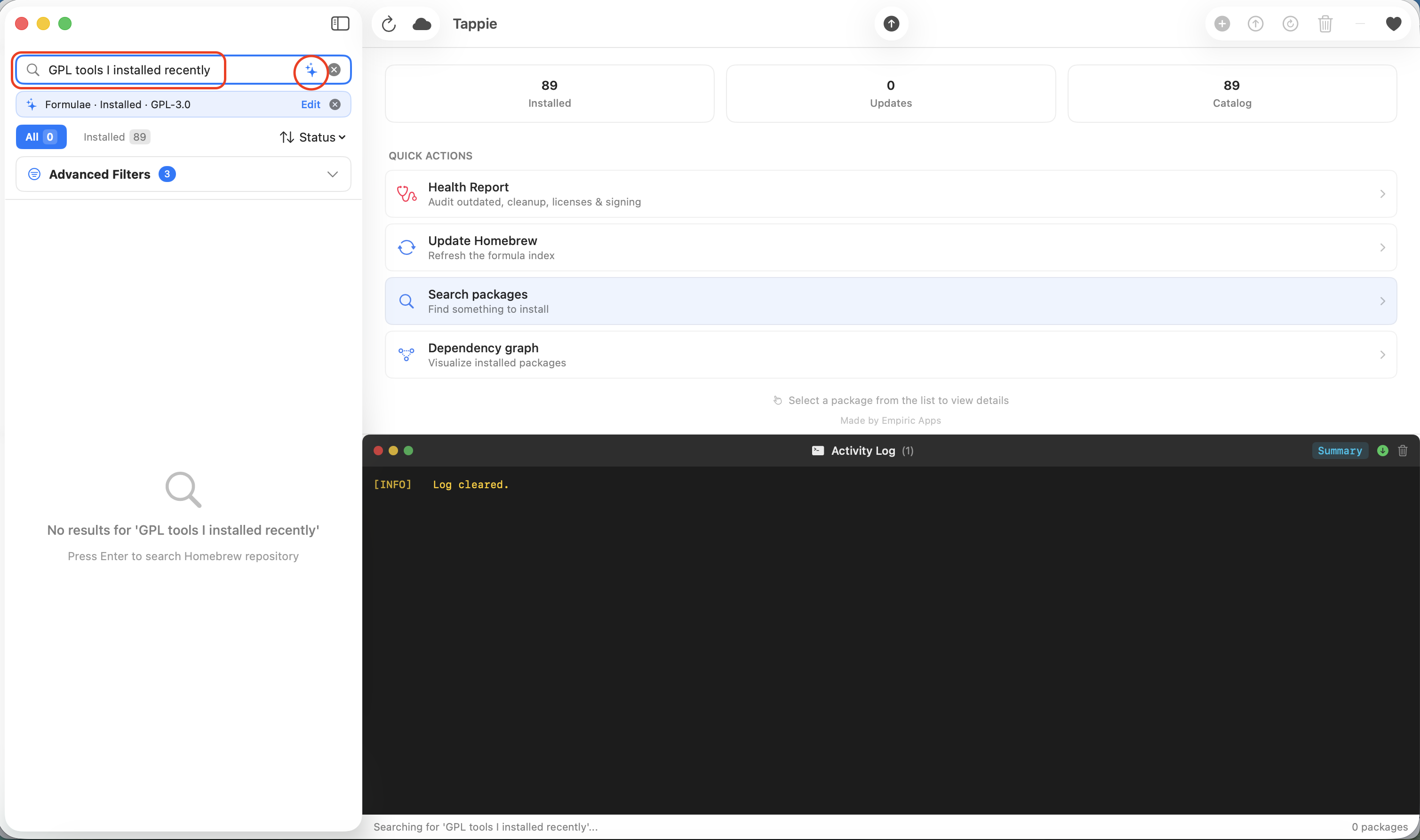
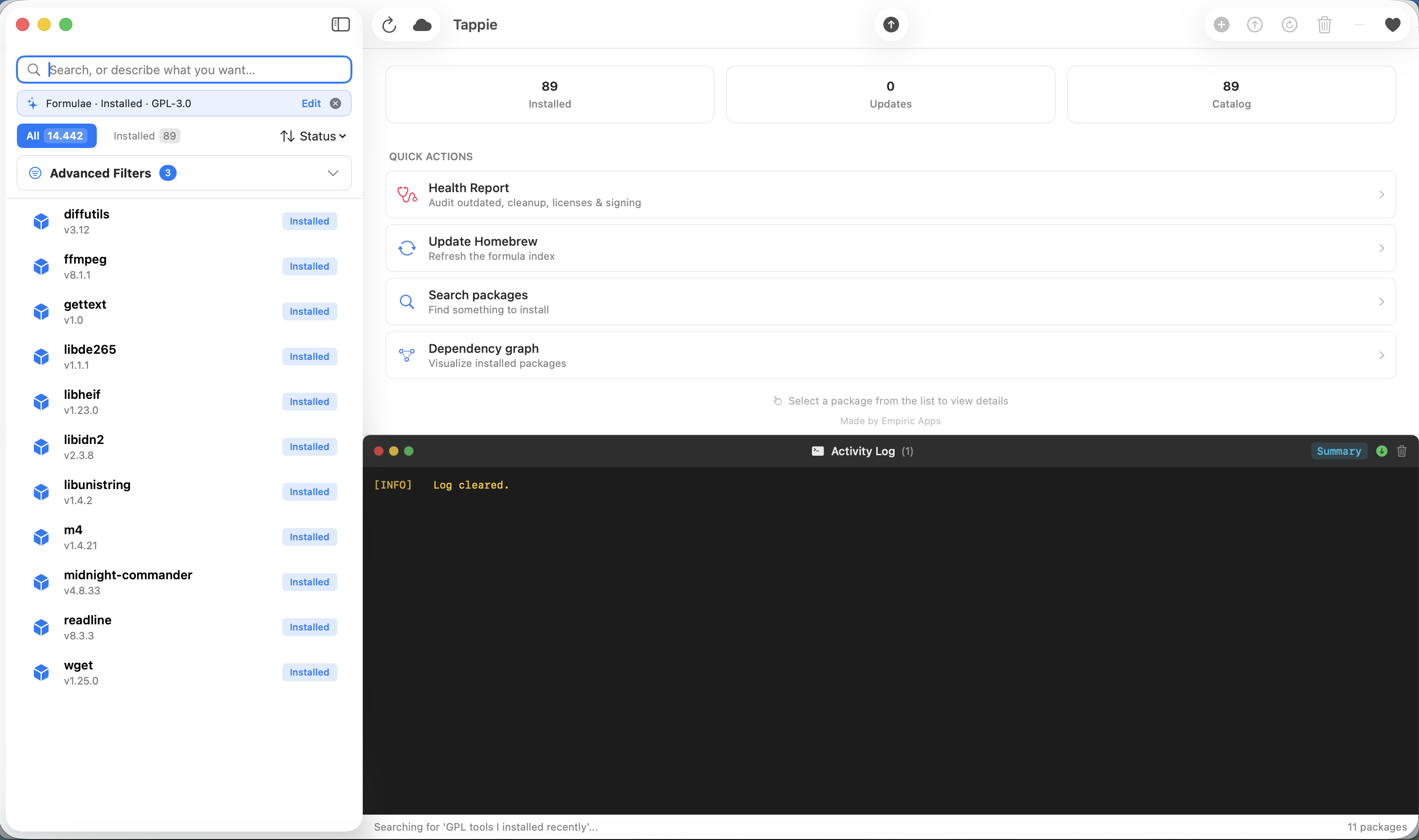
Type what you are looking for in plain language - “casks with updates, MIT licensed” - and Smart Filter turns it into Tappie's existing advanced filter. It runs on Apple's on-device Foundation Models, so nothing leaves your Mac: no network call, no account, no telemetry. You always see the exact filter it built as a chip you can edit or clear, and the model only ever picks from Tappie's real filter options - it can't invent package facts.
Try phrases like
- “casks with updates”
- “formulae installed last week”
- “MIT licensed packages”
- “apps not installed yet”
- “GPL tools I installed recently”
- “Apache or MIT casks”
Requires macOS 26 with Apple Intelligence
Smart Filter is exclusive to the native Swift edition. On earlier macOS versions, and in the cross-platform Tappie-py edition, the button simply doesn't appear - manual filtering works exactly as before.
Smart Filter narrows the packages you already see by kind (formula or cask), installation status, available updates, license, and how recently you installed them. To discover new software by what it does, use the regular search box.
Package Management
Complete control over your Homebrew packages
Visual Package Browser
Browse all available Homebrew packages in a sidebar. Each package shows its name, type (formula or cask), version, and installation status with visual indicators.
One-Click Operations
Install, uninstall, upgrade, and reinstall packages with a single click from the toolbar. No command line required.
Batch Upgrade
Upgrade all outdated packages at once with the 'Upgrade All' button. Useful for keeping your system up to date.
Package Details
View comprehensive package information including version, description, license, homepage, and dependencies.
Real Application Icons
Installed casks show their own application icon in the package list and the detail pane, read from the app bundle already on your Mac with no network request. Casks you have not installed can get their icon from CaskFlow (MIT), an open catalogue that extracts artwork from each vendor's own bundle; formulae and casks it does not cover get a colored monogram tile. Tappie asks on first launch before fetching anything - it is one request per cask name to GitHub's raw CDN, sends nothing about you, and you can change your answer in Settings > Privacy. The home screen has an Applications grid of every cask that installs an app: click to select the package, double-click to open the app.
Disk Usage and Cleanup
See how much space a package occupies, broken down by version, and remove the leftovers from past upgrades in one click.
Pin a Version
Pin a package to hold it at its current version so a batch upgrade leaves it alone, and unpin it when you are ready. Pinned, deprecated, keg-only and self-updating packages are labelled as such.
Search & Filtering
Find exactly what you need with powerful search
Real-time Search
Type to instantly filter packages by name or description. Press Enter to search the remote Homebrew repository.
Quick Filters
Toggle between All packages and Installed packages with quick filter buttons above the package list.
Advanced Filters
Filter by package type (Formulae/Casks), installation status, license type, and packages with available updates.
Saved Presets
Save your favorite filter combinations as presets for quick access later.
Dependency Graph
Visualize your package ecosystem
Interactive Visualization
See package dependencies as an interactive node graph. Blue nodes are selected packages, green are installed, gray are not installed.
Multiple Layouts
Choose between hierarchical (tree-like) or force-directed (physics-based) layouts for different perspectives.
Navigation Controls
Zoom, pan, and fit the graph to your view. Click any node to see its details.
Export to PNG
Export your dependency graph as a high-resolution PNG image (1920x1080) for documentation or sharing.
Backup & Restore
Never lose your package configuration
Create Backups
Export your installed packages, casks, and custom taps. Give each backup a name and description.
Multiple Formats
Export as .brewmate (Tappie native), Brewfile (standard Homebrew), or JSON for scripting and automation.
Selective Restore
Preview what will be installed before restoring. Select or deselect individual packages.
Cross-Machine Sync
Set up new Macs quickly by restoring your package configuration. Useful for dev environment setup.
Scheduled Updates
Automate your package maintenance
Flexible Scheduling
Configure update checks daily or weekly at your preferred time. Optionally only check when connected to power.
Update Policies
Choose to be notified only, auto-update minor versions, or auto-update all versions. Configure separately for formulae and casks.
Package Pinning
Pin specific packages to their current version to prevent automatic updates.
Automatic Cleanup
Optionally remove old versions and cached downloads to save disk space.
Custom Formulas
Create your own Homebrew formulas
Formula Editor
Create custom formulas with fields for name, version, source URL, install script, and more.
Validation
Validate your formulas before use. See errors, warnings, and suggestions for improvement.
Ruby Preview
Preview the generated Ruby code that Homebrew will use for your formula.
Tap Management
Organize custom formulas into taps. See how many formulas each tap contains.
Activity Log
See everything Homebrew is doing
Real-time Output
Terminal-style log showing all operations as they happen. See exactly what commands are running.
Color-coded Entries
INFO (yellow), OK (green), WARN (orange), ERROR (red), and CMD (cyan) prefixes for quick scanning.
Auto-scroll
Automatically follows new entries. Toggle off to review history while operations continue.
Copy & Export
Select and copy log text. History keeps the last 500 entries for debugging.
Keyboard Shortcuts
Speed up your workflow with these shortcuts
| Action | Shortcut |
|---|---|
| Refresh Package List | Cmd+R |
| Update Homebrew | Cmd+Shift+U |
| Upgrade All Packages | Cmd+U |
| Focus Search | Cmd+F |
| Open Dependency Graph | Cmd+Shift+G |
| Settings | Cmd+, |
Accessibility
Designed with accessibility in mind
VoiceOver Support
- All buttons have descriptive labels
- Package rows announce name, type, version, status
- Toolbar buttons explain function and state
Visual Design
- High contrast status badges
- Color + text for all status indicators
- Resizable window with minimum constraints
More from Empiric Apps
Native macOS tools built with the same attention to detail.