Backup & Restore
Save your package configuration and restore it on any Mac.
Why Backup?
Backing up your Homebrew configuration is useful when:
- Setting up a new Mac
- Reinstalling macOS
- Syncing packages across multiple Macs
- Sharing your development environment setup
- Keeping a record of your installed software
Creating a Backup
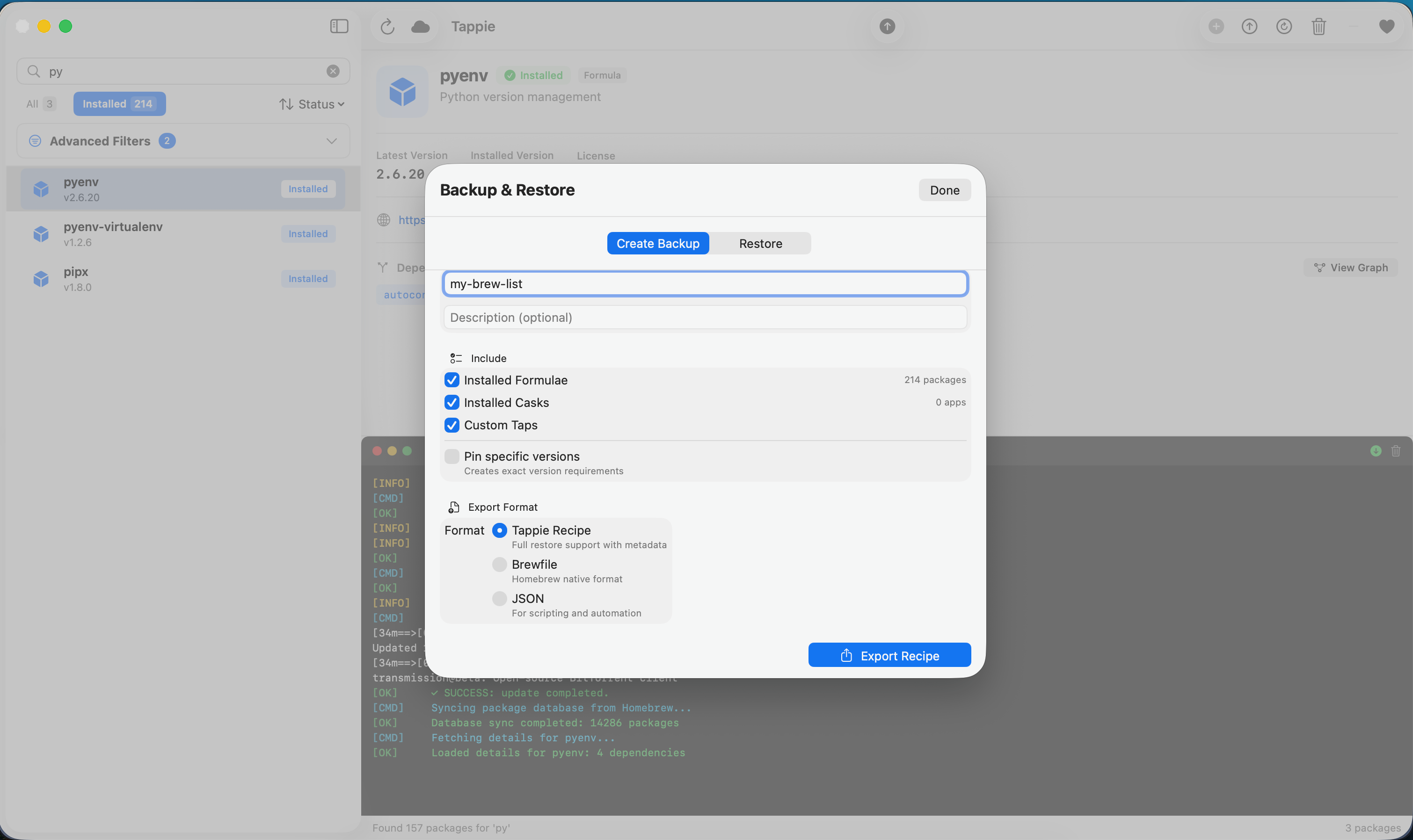
Quick Backup
- Click File → Export Package List in the menu bar
- Choose a location to save the backup file
- Click Save
Backup Options
When creating a backup, you can choose what to include:
| Option | Description |
|---|---|
| Formulae | Command-line tools and libraries |
| Casks | GUI applications |
| Taps | Third-party Homebrew repositories |
| Include versions | Save specific version numbers |
Tip: Include taps in your backup if you use packages from third-party repositories.
Backup File Formats
Tappie supports multiple backup formats:
Brewfile (Recommended)
The standard Homebrew bundle format:
tap "homebrew/bundle"
tap "homebrew/cask-fonts"

brew "git"
brew "node"
brew "python"

cask "visual-studio-code"
cask "google-chrome"
cask "slack"
Benefits:
- Compatible with
brew bundlecommand - Human-readable and editable
- Version control friendly
JSON Format
Structured data format with additional metadata:
{
  "created": "2024-01-15T10:30:00Z",
  "homebrew_version": "4.2.0",
  "formulae": ["git", "node", "python"],
  "casks": ["visual-studio-code", "google-chrome"],
  "taps": ["homebrew/cask-fonts"]
}
Plain Text
Simple list of package names, one per line.
Restoring from Backup
Using Tappie
- Click File → Import Package List
- Select your backup file
- Review the packages that will be installed
- Click Install All to begin restoration
Review Before Installing
Before restoring, Tappie shows you:
- Packages that will be installed (not currently on your system)
- Packages that are already installed (will be skipped)
- Packages that are no longer available
- Estimated download size
Note: Restoration may take a while depending on the number of packages and your internet speed.
Using Command Line
You can also restore a Brewfile using the terminal:
brew bundle install --file=~/path/to/BrewfileScheduled Backups
Set up automatic backups in Tappie settings:
- Open Settings (
Cmd+,) - Go to the Backup tab
- Enable Automatic Backups
- Choose backup frequency (daily, weekly, monthly)
- Select backup location
Backup Retention
Configure how many backups to keep:
- Keep all - Never delete old backups
- Keep last N - Keep only the most recent N backups
- Keep for X days - Delete backups older than X days
Cloud Sync
Store backups in cloud services by setting the backup location to:
- iCloud Drive - ~/Library/Mobile Documents/com~apple~CloudDocs/
- Dropbox - ~/Dropbox/
- Google Drive - ~/Google Drive/
- OneDrive - ~/OneDrive/
Best Practices
Version Control
Store your Brewfile in a git repository:
- Create a dotfiles repository
- Add your Brewfile to the repo
- Commit changes whenever you add/remove packages
- Clone on new machines to restore
Regular Backups
- Enable automatic weekly backups
- Create a manual backup before major system changes
- Keep backups in cloud storage for redundancy
Testing Restores
- Periodically test your backup by restoring on a fresh system
- Use a virtual machine for testing if needed
- Verify critical packages are included
Troubleshooting
Package Not Found During Restore
If a package in your backup no longer exists:
- The package may have been renamed - search for alternatives
- The tap may need to be added first
- The package may have been removed from Homebrew
Version Conflicts
If specific versions are unavailable:
- Tappie will install the latest available version
- Use
brew pinto prevent unwanted upgrades - Consider using version managers for languages (nvm, pyenv, etc.)