Blog · September 15, 2026
Copy your photos straight from an iPhone to a NAS, with nothing in the middle.
Here is a thing an iPhone still cannot really do on its own: put four years of photos onto the Synology in your hallway cupboard.
You can share a few to an app. You can hand the whole library to a cloud service that would like a monthly fee for it. Or you can plug the phone into a Mac and let something else do the copying. What you cannot do is open a file manager, look at your own photos, and drag them onto a server - because the Files app cannot browse the photo library at all. The library is not a folder. It is a database the system keeps to itself, and every file manager on iOS has simply had to pretend it is not there.
EmpiricCommander asks the system for the library and shows it in a pane, next to everything else it can reach.
The library, as a folder tree
All Photos, Recents, Favourites, Screenshots, Videos, Albums and Years each behave like a folder. You open one, you select what you want, and the other pane is whatever you connected to: the SMB share on your Synology, an SFTP or FTP server, a Backblaze B2 bucket, or just a folder on the device. The copy goes from the left pane to the right one. That is the whole gesture, and it is the same gesture you would use for any other file.
It is read-only in the direction that matters. Nothing is ever written back into your library - the app takes copies out and never puts anything in.
Where the photos can actually land
The destination is a protocol, not a brand deal, so the list is whatever speaks one of them. Over SMB: a Synology, a QNAP, a TrueNAS or Unraid box, a Windows PC with file sharing on, or a Mac with File Sharing on. Over WebDAV: Nextcloud, ownCloud, Box, Apache mod_dav. Over SFTP or FTP: any server you can already ssh into, a Raspberry Pi in the corner included. Over the S3 API: Amazon S3 itself, Backblaze B2, Wasabi, Cloudflare R2, Storj, a self-hosted MinIO. Plus iCloud Drive, Google Drive and Dropbox, and a plain folder on the device for when you just want it off the camera roll.
And the other half of that sentence, because it is the thing people are usually looking for: it does not upload into another photo service. There is no Google Photos, Amazon Photos or Flickr destination here, and there will not be - those are closed APIs, not file shares. This copies files to storage you control. If what you want is a different company holding your library, this is the wrong tool and you should keep looking.
What lands is the original file
Nothing is re-encoded. The file that arrives on the NAS is byte for byte the file the camera wrote, with its dates and its location still attached. This is the part most photo-export tools quietly get wrong: they hand you a JPEG re-compressed at some quality setting you did not choose, stripped of half its metadata, and call it an export.
There is an optional JPEG conversion if you actually want one. It is off by default and it never touches video.
If an original lives only in iCloud, it is downloaded first, on its own progress line, so a copy that is really a download does not look like a copy that has stalled.
You decide the shape of the folder before it exists
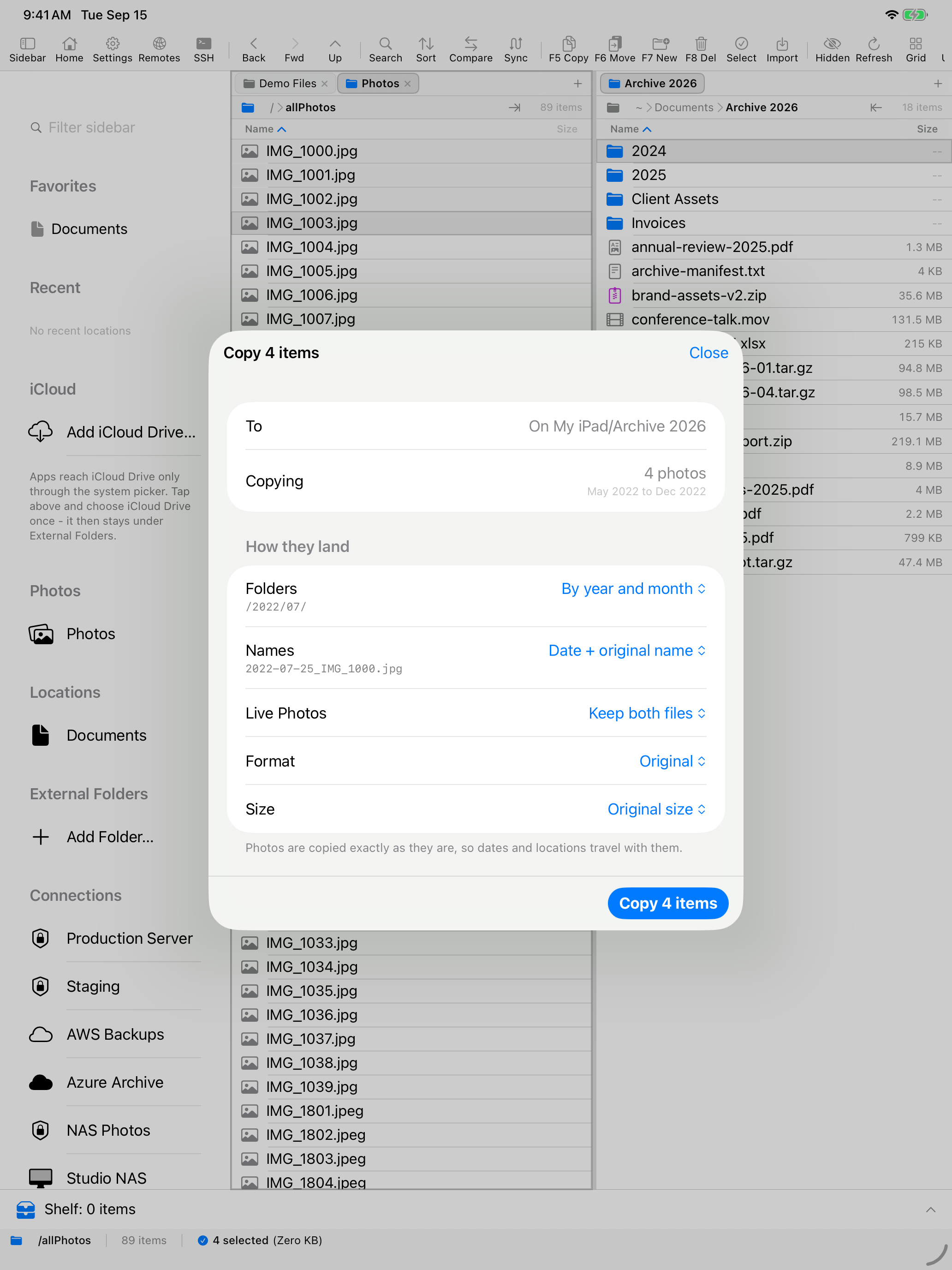
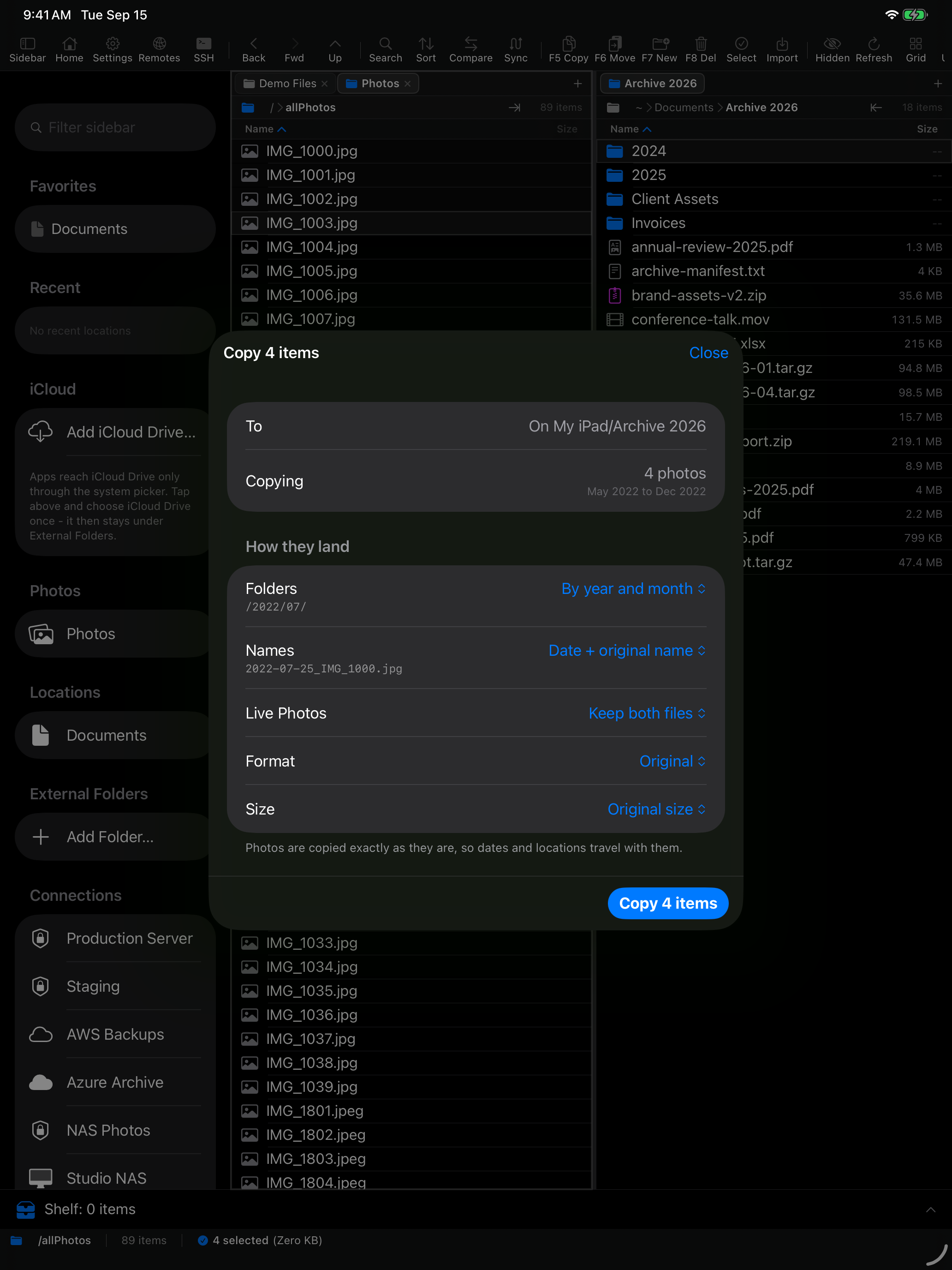
Before the copy starts you choose the folder layout and the file naming, and each option shows an example of its own output, so you are picking a result rather than decoding a label. Then a summary tells you how many photos and videos you selected, how many files that turns into, and the range of dates they span - which is usually the moment you notice you picked 2019 as well.
Run the same album again and only the new things move
Copy an album to a share today, add eleven photos to it next month, run it again: only the eleven are copied. What went where is remembered on the device, per destination.
Be clear about what that is, though. It is a second run, not a backup and not a sync. There is no schedule, and nothing happens in the background - you open the app and you run it. If you want something that copies your photos while you sleep, this is not that, and we would rather say so here than let you find out in three months.
Deleting after a copy, carefully
If you are moving photos off a full phone, the app can offer to delete what it copied. The offer is only made for files it read back from the destination and matched by byte count - and if a single file does not match, the offer is withdrawn for the whole batch. Deleting photos on the strength of a copy nobody re-read is how people lose pictures, so the app will not do it.
If you do not want to hand over the whole library
Limited library access is supported. Pick what the app can see with the system picker and it works with exactly that much.
On a Mac the same pane exists, with one wrinkle worth knowing: grant access when the app asks for it, then reopen the app once. The pane picks the grant up on the next launch.
Where it runs, and what it costs
The photo pane arrived on iPhone and iPad in 2.7, and on the Mac in 2.7.1. EmpiricCommander is $49.99, paid once, covering one Mac, one iPhone and one iPad, with a 7-day trial before you decide. There is no subscription and nothing about your photos goes anywhere near us - the copy is between your device and your own destination.
Since version 2.14, SMB shares are spoken over SMB 3, negotiated up to 3.1.1 and signed with AES-CMAC, on iPhone and iPad as well as on the Mac. Since 2.19, an upload to an SMB share streams straight to the share, and one that gets interrupted picks up from where it stopped instead of starting over.
Doing this from an iPad? The iPad file manager page covers the same ground with a bigger screen in mind, and the SMB page goes into connecting to the NAS itself.